
OLED Display Output
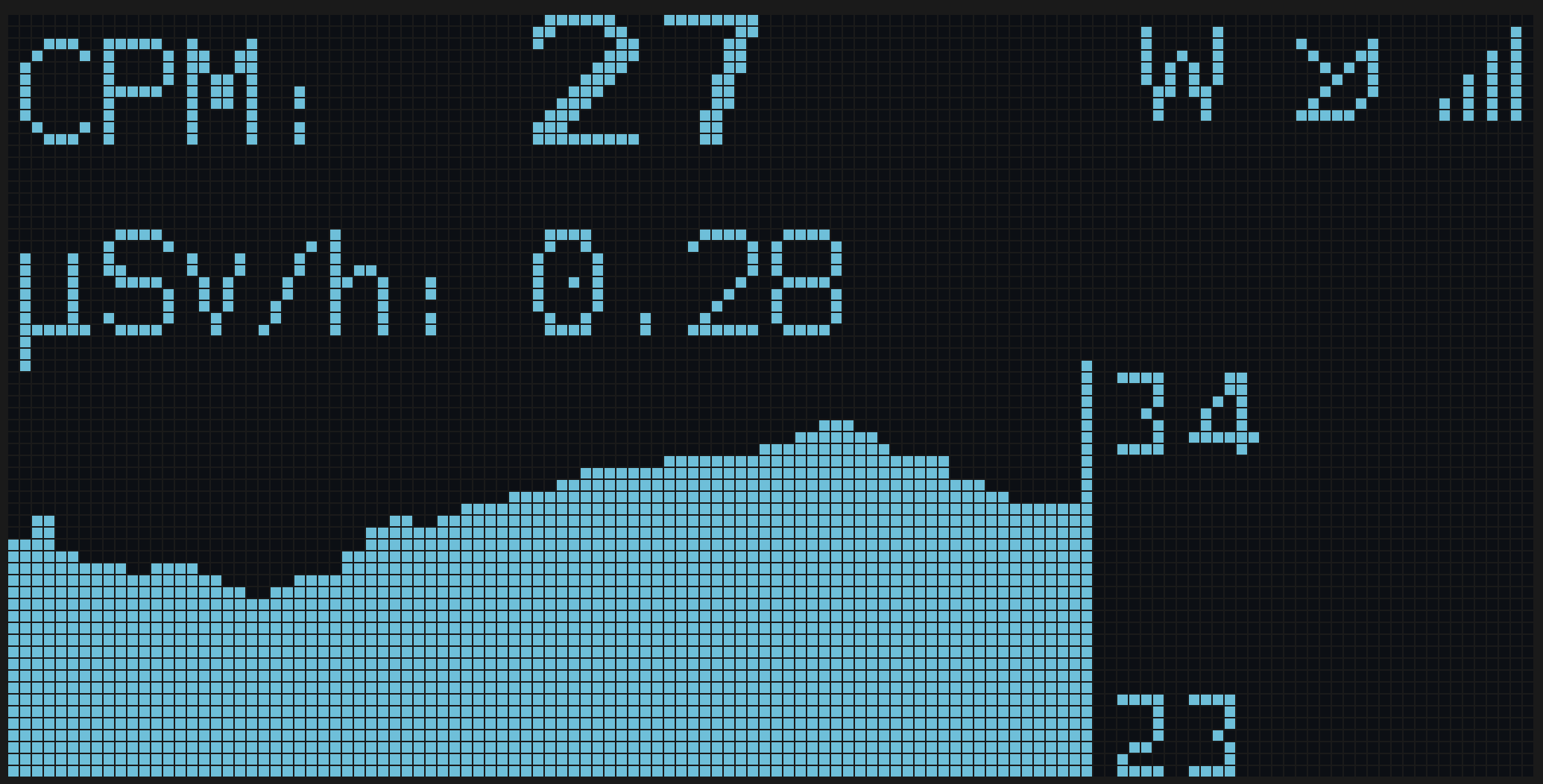
Display behaviour
Three settings on the Display config page control when the OLED is on:
- Timeout (push-button builds only) - seconds of inactivity before the display turns off after a tap.
0falls back to the On/Off Time schedule below. - On Time / Off Time - daily schedule; outside the window the display is off. Leave both blank for “always on”. Window crosses midnight if
from > to(e.g.22:00-07:00). - Brightness - 0-100 %.
On builds without a push button, only the schedule applies.
On builds with a push button, the resolution order is:
- Long-press override active → display always on.
- Otherwise, if Timeout > 0 → on for Timeout seconds after each tap.
- Otherwise (Timeout = 0) → follow On/Off Time schedule, with a 30-second wake window after any tap so you can check readings during off-hours.
Push-button operations
Single press
Cycles through the information pages. If the display is off, the first tap turns it on and shows page 1.
Long press
Toggles the always-on override. The onboard LED flashes once when the override turns on (display will follow Timeout/schedule normally), twice when it turns off (display stays on permanently). On ESPGeiger-HW devices the beeper reacts in time with the LED.
Pin configuration
Builds without OLED_PINS_BLOCKED expose the OLED I2C pins as runtime prefs (I2C SDA Pin and I2C SCL Pin) on the same Display config page. Changes trigger a reboot to take effect. Purpose-built kits set OLED_PINS_BLOCKED at compile time so the pins stay fixed.
Browser screen viewer
OLED builds expose a live preview of the framebuffer at /screen. The page redraws ~5 times a second from a raw fetch of the 1024-byte framebuffer, picks a phosphor tint, and accepts virtual button taps - useful for headless debugging, remote demos, or screenshots without a phone camera. The view is rendered even on builds compiled with display support but no display attached, so you can build a UDP-receiver build with esp8266oled_udp and still see what the panel would show.
| Path | Returns | Use |
|---|---|---|
/screen | HTML viewer page | Interactive view in the browser |
/screen.bin | Raw 1024-byte framebuffer | Direct decode (column-packed, 128x64 1bpp) |
/screen.bmp | Transposed PNG-alike | One-shot screenshot |
/screen/tap | OK | Virtual short press of the user button (push-button builds) |
The viewer remembers your phosphor tint choice in localStorage. The /screen.bin endpoint is what you want if you’re scripting against the device.